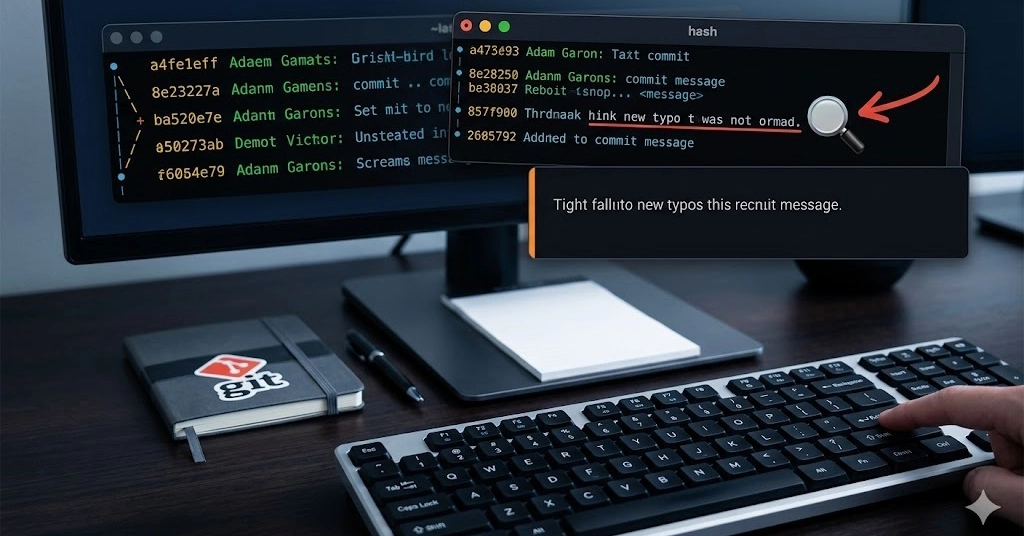
The cursor blinked. Three commits ago. A typo, glaring, mocking. We’ve all been there, staring at the screen after a productive coding session, only to find a small, infuriating error lurking in a commit message that’s now buried under a few subsequent updates. Standard <a href="/tag/git/">git</a> commit --amend is only good for the very last commit, leaving you stranded when the mistake is older.
This is where the real magic of Git, or rather, its clever configurability, shines. Forget the arcane incantations of terminal editors for a moment. For those on Windows, particularly those who find the prospect of vim in a command prompt akin to defusing a bomb with a spork, there’s an elegant workaround that feels almost embarrassingly straightforward.
Telling Git to Be Nice (to Notepad)
Before any historical surgery, a bit of configuration is in order. This is less about deep Git architecture and more about user experience – a humble, yet powerful, tweak to Git’s global settings. You’re essentially telling Git, “Hey, when you need me to edit something, don’t force me into that stark, unforgiving terminal. Use Notepad instead.” The command is deceptively simple:
git config --global core.editor "notepad"
This single line, when executed, reconfigures Git’s default editor preference. It’s a small act of rebellion against the terminal-centric nature of some developer tooling, but for many, it’s the difference between a manageable fix and an immediate urge to revert everything.
The Interactive Rebase: A Surgical Strike
Now for the core operation: the interactive rebase. This is Git’s blunt instrument for rewriting history, and it’s exactly what you need to reach back and tweak those older commits. The common invocation for this task involves specifying the number of commits you want to interact with from your current HEAD.
git rebase -i HEAD~3
This command tells Git: ‘I want to rebase interactively, and I’m interested in the last three commits.’ The -i flag is the key, unlocking a series of prompts and edits that allow for fine-grained control over your commit history. It’s a powerful tool, and historically, one that has sent many a developer scrambling for online tutorials, often involving complex Vim commands.
Rewording the Past: The Notepad Edition
Here’s where the Notepad configuration pays off. Upon running the interactive rebase command, instead of a Vim or Emacs buffer appearing in your terminal, a familiar Notepad window will materialize. This window lists the commits you’ve targeted (in our case, the last three), each preceded by the keyword pick. Your mission, should you choose to accept it, is to find the specific commit message you need to alter.
Once located, you’ll swap pick for reword. This tells Git that you intend to modify the commit message associated with that particular change, but crucially, you don’t want to alter the commit’s content or its parentage. Save the file in Notepad (Ctrl+S) and close it.
The immediate follow-up is another Notepad window. This one, blessedly, contains only the commit message for the specific commit you flagged for rewording. It’s a focused, uncluttered view, perfect for making your correction. Delete the typo, type the accurate message, save, and close. Git then stitches the rewritten commit back into the history. It’s a surprisingly clean process, devoid of the usual terminal-editor anxieties.
When Pushing Means Forcing
This is the critical caveat. If the commits you’ve just ‘fixed’ have already been pushed to a remote repository—say, GitHub or GitLab—a standard git push will likely be rejected. Why? Because you’ve altered history, and the remote repository’s history doesn’t match your local, rewritten version. Git, in its wisdom, prevents you from creating divergent histories that could cause chaos for collaborators.
This is where the git push --force (or git push --force-with-lease, which is generally safer) command comes into play. It’s a command that developers often approach with a healthy dose of trepidation, and rightly so. This operation rewrites history on the remote.
# Replace 'main' with your branch name
git push origin yourbranch --force
It’s imperative to reiterate the warning embedded in the original instructions: Only perform a force push if you are the sole active developer on that branch. Pushing force can overwrite the work of others if they’ve based their changes on the old history. It’s a powerful tool for personal branches or when coordinating a clean-up with a single other developer who understands the implications. For shared branches, it’s a recipe for disaster.
A Humanist Approach to Version Control
What’s truly fascinating here isn’t just the technical trick of using Notepad. It’s the acknowledgement that not everyone thrives in a purely terminal-driven environment, or perhaps, the recognition that sometimes, developer productivity is best served by familiar, graphical tools. This approach democratizes a slightly more complex Git operation, making it accessible without demanding mastery of vi or Emacs. It’s a subtle architectural shift in how we can interact with Git—a move towards a more user-centric, less intimidating developer experience. It underscores that the ‘how’ we interact with our tools can be as important as the tools themselves, especially when it comes to something as fundamental as Git history.
🧬 Related Insights
- Read more: Clanker Branch: How AI Fuzzing Is Quietly Hardening the Linux Kernel
- Read more: RISC-V XIP Linux Support Yanked After Endless Breaks — A Wake-Up Call for Open ISA Dreams
Frequently Asked Questions
What does git rebase -i HEAD~3 actually do?
It starts an interactive rebase session, allowing you to reorder, edit, squash, or drop the last three commits in your current branch’s history.
Is git push --force dangerous?
Yes, it can be. It overwrites the remote history. Only use it if you’re certain no one else is working on the branch, or if you’ve coordinated the force push with your team.
Can I use other simple editors with Git?
Absolutely. You can configure Git to use almost any text editor by changing the core.editor setting. For example, code --wait for VS Code, or subl -w for Sublime Text.