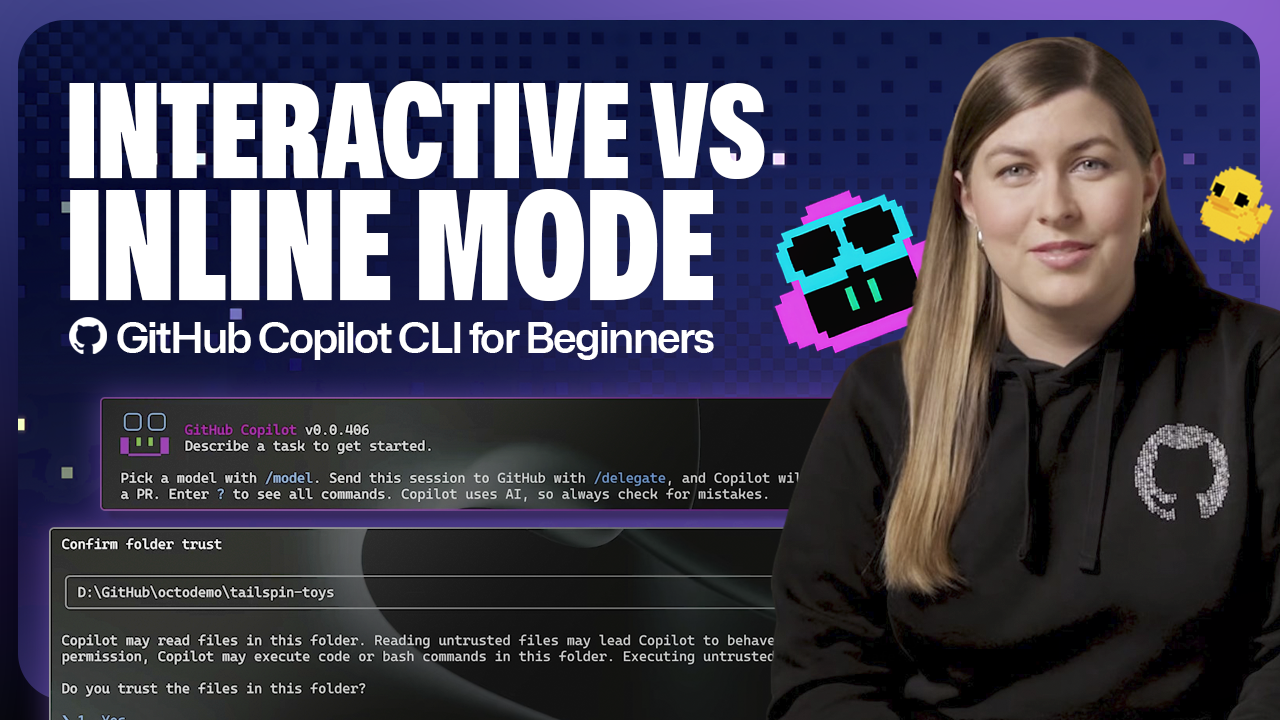
Everyone expected GitHub Copilot CLI to be… well, Copilot, but in the terminal. A digital assistant to spit out code or answer questions. What we got was that, and then some. Now, GitHub is drawing a line in the sand, splitting the CLI into two distinct operational modes: interactive and non-interactive. This isn’t just a minor tweak; it fundamentally changes how you’ll approach using Copilot for command-line tasks.
No more wading through a single, potentially overwhelming interface. You now have a choice. Do you want a chatty session, a full-blown coding partner right there in your shell? Or do you just need a quick answer, a one-off command suggestion, without the conversational baggage? This is the core of the new Copilot CLI.
The Chatty Companion: Interactive Mode
So, you’ve just typed copilot and hit enter. Congratulations, you’re in the chat room. This is your deep-dive zone. Think of it as having an experienced pair-programmer perched on your shoulder, ready for a back-and-forth. You ask a question, Copilot answers. You follow up. You refine. It’s iterative. It’s hands-on. It’s for when you’re exploring, when you’re not entirely sure of the precise command you need, or when you want to understand the why behind the suggestion.
This mode is where the magic is supposed to happen for complex problems or when you’re learning a new command-line tool. You can ask it Bottom line: a long script, explain a baffling error message, or even help you brainstorm a pipeline. The context stays with you, session after session, which is both a blessing and, potentially, a curse if sessions become too unwieldy.
The Speedy Servant: Non-Interactive Mode
But who always has time for a full conversation? Not most developers, frankly. Enter non-interactive mode. This is for the sprint. The quick fix. The ‘I-know-what-I-need-now-give-it-to-me’ crowd. You’re not entering a session; you’re firing off a single missive. Type copilot -p and you’re prompted for your request. A quick summary? A code snippet? A command to install something? Bam. Answer delivered. You’re immediately back to your terminal flow.
This is where Copilot CLI can actually shine for automation. Imagine plugging it into a CI/CD pipeline to generate commit messages or brief release notes. Or using it to quickly translate a configuration file format. It’s designed to be a single, sharp tool in your command-line arsenal, not a persistent presence.
Picking Up the Threads: Resuming Sessions
What if you started a deep dive in interactive mode, got interrupted, and now want to pick up exactly where you left off? GitHub’s got you covered. Type /resume in an interactive session, and you can select a previous conversation. For the speed demons, copilot --resume from non-interactive mode gets you to the session picker even faster. It’s a nod to the reality that work often isn’t linear.
This feature is smart. It acknowledges that complex tasks aren’t always completed in one sitting. Being able to jump back into a specific context, with all the prior dialogue intact, saves time and mental overhead. It’s the difference between rereading a chapter of a book and just flipping back to the last page you marked.
The Real Question: Does This Matter?
Here’s the acerbic critic’s take: For years, we’ve been bombarded with AI promises. Much of it has been hype. Copilot CLI’s split into interactive and non-interactive modes is a tangible step. It’s not revolutionary, but it’s practical. It recognizes different user needs and different use cases. The interactive mode caters to exploration and learning, while non-interactive mode prioritizes efficiency.
But let’s be clear. This isn’t about reinventing the wheel. It’s about refining the spokes. The true test won’t be in the announcement of these modes, but in how reliably and accurately Copilot CLI performs within them. Will non-interactive mode consistently provide the right command without subtle, job-breaking errors? Will interactive mode’s context management actually aid productivity, or just become a dumping ground for more AI suggestions we have to sift through?
“Having the option to pick between back-and-forth coding and quick prompting means you can work with Copilot, the way you want.”
That’s the marketing spin. The reality is, you have options. That’s always good. But let’s not pretend this is the second coming of the command line. It’s an evolution. A sensible one, perhaps. The key takeaway is that developers now have more control over their AI assistant’s behavior within the terminal, moving beyond a singular, potentially clunky, user experience.
This move by GitHub feels like a sensible concession to the fact that developers aren’t monolithic. We have different workflows, different needs, and frankly, different levels of patience for AI blather. The interactive mode is for the curious, the learners, and the explorers. The non-interactive mode? That’s for the pragmatists, the automation enthusiasts, and those who just want the damn answer so they can move on. It’s a recognition that sometimes you need a guide, and sometimes you just need a map. The question remains whether the map it provides is accurate enough to get you where you need to go without leading you off a cliff.
🧬 Related Insights
- Read more: crossword.by: One Dev Ditches Ad Hell for Blazing-Fast, Ad-Free Puzzles in 7 Languages
- Read more: Node.js 24.13.1: Stability & Dependencies Update
Frequently Asked Questions
What’s the main difference between Copilot CLI interactive and non-interactive modes? Interactive mode is a chat-like, back-and-forth experience for deeper exploration, while non-interactive mode provides quick, one-off answers to single prompts directly in your terminal.
Can I resume a previous Copilot CLI conversation?
Yes, you can use /resume in interactive mode or copilot --resume in non-interactive mode to pick up a prior session from a list.
When should I use non-interactive mode? Non-interactive mode is best for quick tasks like summarizing repositories, generating code snippets, or integrating Copilot into automated workflows where you need immediate results without a full session.